User Guide
Food Bridge is a desktop app for managers of restaurants that do deliveries. It helps you organize customer contacts, track active and past orders, and update delivery-related details from one place. Using fast typed commands, you can process daily delivery operations efficiently.
New users can start with Command format, then follow the Example Workflow, and refer to Features for full command details.
Table of Contents
- Quick start
- Example Workflow
-
Features
- Command format
- Customer Management Commands
-
Order Management Commands
- Orders
- Menu
- Adding an order:
addorder - Deleting an order:
deleteorder - Listing all orders:
listorder - Viewing current orders:
listcurrorder - Viewing past orders:
listpastorder - Finding orders by phone number or region:
findorder - Deleting orders of a specific person:
deleteorderbyphone - Editing an order:
editorder - Mark an order as completed:
complete - Completing all orders in a region:
completeregion - Clear Order List:
clearorder
- General Commands
- Data Storage
- FAQ
- Known issues
- Command summary
Quick start
-
Ensure you have Java
17or above installed on your computer. Use these installation guides to ensure you have the correct version: -
Download the latest version of the app from here (under Assets, look for the file ending with
.jar). -
In your computer’s file manager (e.g. File Explorer or Finder), create a new folder and copy the downloaded
.jarfile into it. -
Open a command terminal.
- Windows users: Press Win + R, type “cmd”, and press Enter.
- Mac users: Press Command + Space to open Spotlight search, type “Terminal”, and press Enter.
-
Type
cd(make sure to include the space), then drag the folder containing the.jarfile into the terminal window. Press Enter to navigate to the folder. -
Type
java -jar food-bridge-[version].jarand press Enter to launch the application.
E.g. If you downloaded version 1.6, you should typejava -jar food-bridge-1.6.jar.
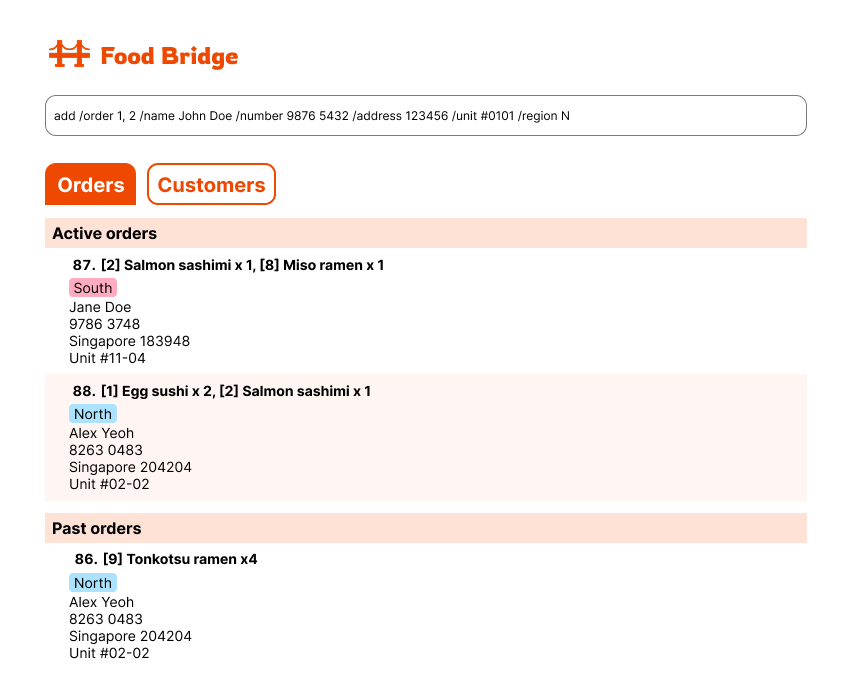
An interface similar to the below should appear. Note how the app contains some sample data.
-
Type a command into the command box and press Enter to execute it. e.g. typing
helpand pressing Enter will open the help window. -
If you are new to CLI apps, read Command format first to understand how Food Bridge commands are structured.
-
Refer to the Example Workflow for a quick introduction to the commands.
-
Refer to the Features below for details of each command.
Example Workflow
Here is an example workflow for a new user getting to know Food Bridge.
-
Clear existing data: Use
clearto remove the sample data. -
Add a customer: A new order comes from a customer:
- Name: Jenny Tan
- Phone number: 98765432
- Postal code: 111111
- Unit number: #01-01
- Region: North.
Useaddperson n/Jenny Tan p/98765432 a/111111 u/#01-01 r/Nto add the new customer to the contact list.
-
Edit a customer: You realise the unit number is wrong. It should be #02-01.
Useeditperson 1 u/#02-01to edit the contact. (1refers to the first customer in the list, i.e. Jenny Tan.) -
Add an order: The customer orders:
- Caesar Salad x1
- Cafe Latte x2 From the menu, you check the item numbers:
- Caesar Salad: item 5
- Cafe Latte: item 8
Use
addorder c/1 o/5 1 o/8 2to add the order.
-
List all orders: Use
listorderto see all orders. -
Edit an order: The customer changes Caesar Salad (item 5) to Smoked Salmon Bagel (item 6).
Useeditorder 1 o/5 0 o/6 1to edit the order. (1refers to the first order in the list.) -
Delete an order: Once the order is completed, use
deleteorder 1to delete the order. (1refers to the first order in the displayed order list.) -
Find orders: Use
findorder r/Nto list all orders (active and inactive) from the North region, orfindorder p/98765432to list all orders (active and inactive) by phone number. -
Complete orders by region: Use
completeregion r/Nto mark all North region orders as completed. -
Exit: Use
exitto close the application.
Features
Food Bridge commands are grouped by what you need to manage:
- Customer management commands to add, edit, delete, list, and find customers by region.
- Order management commands to add, edit, delete, filter, complete orders, and list orders by status.
- General commands for help, undo/redo, clearing data, and exiting the app.
If you are new, start with Command format, then try the Example Workflow before exploring individual command details below.
Command format
The commands used in Food Bridge consist of the following parts:
command [INDEX] [prefix/VALUE]…
- The
command, which controls the behaviour. - The
INDEX, which identifies the relevant item in the list. - The
prefix, which identifies a field in a customer or order. - The
VALUE, which provides information for the field identified by theprefix.
Notes about the format:
-
Parameters: Words in
UPPER_CASEare the parameters to be supplied by the user.
e.g. inaddperson n/NAME,NAMEis a parameter which can be used asaddperson n/John Doe. -
Optionals: Items in square brackets are optional.
e.gn/NAME [t/TAG]can be used asn/John Doe t/memberor asn/John Doe. -
Multiple parameters: Items with
… after them can be used multiple times, including zero times.
e.g.[t/TAG]…can be used ast/member,t/member t/staff, or simply ignored. -
Parameter order: Apart from the
INDEX, parameters can be in any order.
e.g. if the command specifiesn/NAME p/PHONE_NUMBER,p/PHONE_NUMBER n/NAMEis also acceptable. -
Commands with no parameters: Extraneous parameters for commands that do not take in parameters (such as
help,listperson,listorder,exitandclear) will be ignored.
e.g. if the command specifieshelp 123, it will be interpreted ashelp.
If you are using a PDF version of this document, be careful when copying and pasting commands that span multiple lines as space characters surrounding line-breaks may be omitted when copied over to the application.
Customer Management Commands
Customer contacts
Information about a customer is stored in a customer contact. Each contact has the following fields:
- Name: The name of the customer.
- Phone number: The phone number of the customer.
- Address: The address of the customer, identified by its postal code.
- Unit number: The optional unit number of the customer’s address.
- Region: One of the five regions in Singapore, i.e. North, North East, West, East, and Central.
-
Tags: Additional information about the customer, e.g.
member
Below are some common parameters and their required formats.
| Parameter | Format requirements |
|---|---|
CUSTOMER_INDEX |
Must be a positive integer, e.g. 1, 2, 3, … |
NAME |
Must contain only alphabetical letters, numbers, and spaces. |
PHONE_NUMBER |
Must be exactly 8 digits long and start with either 6, 8, or 9. |
POSTAL_CODE |
Must be exactly 6 digits long. |
UNIT |
Must be in the form #XX-XX or #XX-XXX, where X is a digit. |
REGION |
Must be either: N, NE, W, E, or C. |
TAG |
Must contain only alphabetical letters and numbers. |
Adding a customer: addperson
You can add a customer to the contact list.
Format: addperson n/NAME p/PHONE_NUMBER a/POSTAL_CODE [u/UNIT_NUMBER] r/REGION [t/TAG]…
- Adding a unit number is optional.
- You can add zero or more tags to a customer.
Examples:
-
addperson n/John Doe p/98765432 a/111111 u/#01-01 r/Nadds a customer namedJohn Doewith phone number98765432, postal code111111, unit number#01-01, in theNregion to the contact list. -
addperson n/Betsy Crowe p/87243155 a/110022 r/C t/memberadds a customer namedBetsy Crowe, with phone number87243155, postal code110022, in theCregion, tagged as amemberto the contact list.
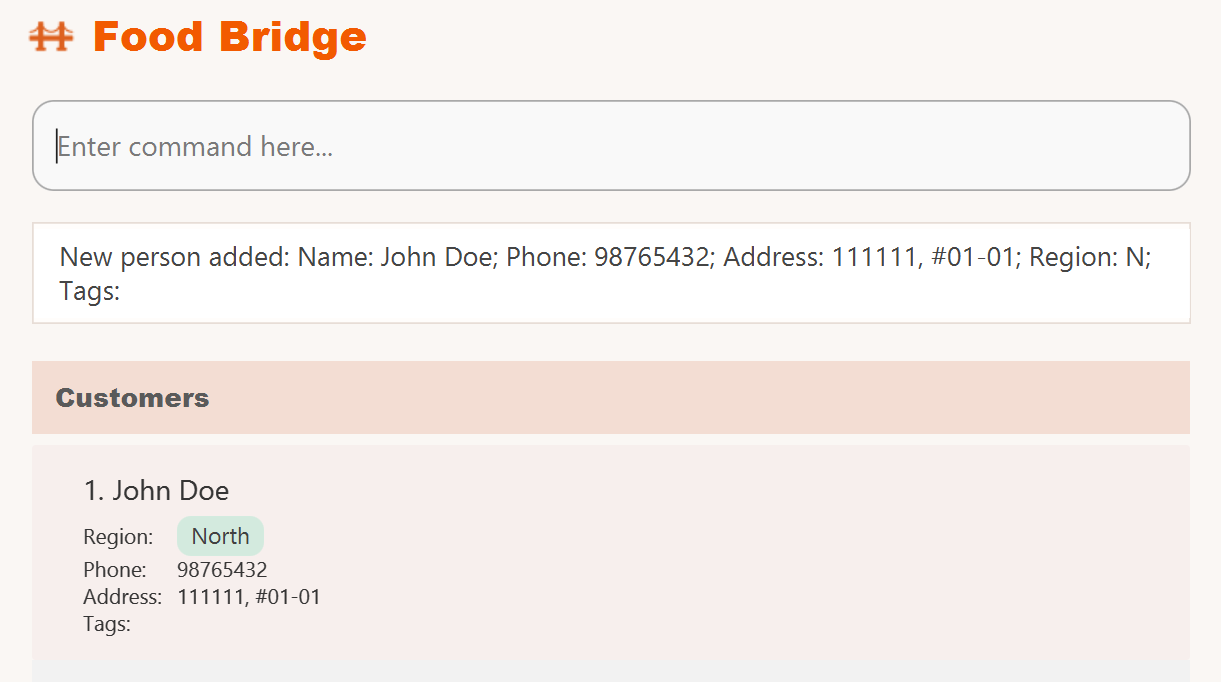 Figure: The new customer appears in the customer list after executing the command
 addperson n/John Doe p/98765432 a/111111 u/#01-01 r/N.
Refer to common parameters and required formats.
Deleting a customer: deleteperson
You can delete the specified customer from the contact list.
Format: deleteperson CUSTOMER_INDEX
- Deletes the customer at the specified
CUSTOMER_INDEX.- The index refers to the index number shown in the displayed contact list.
- Warning: This is a destructive action. If the customer has any existing orders, those associated orders are deleted together with the customer.
Examples:
-
deleteperson 2deletes the 2nd customer in the contact list. -
findperson Nfollowed bydeleteperson 1deletes the 1st person displayed in the results of thefindpersoncommand.
Refer to common parameters and required formats.
Listing all customers: listperson
You can view a list of all customers in the contact list.
Format: listperson
Editing a customer: editperson
You can edit an existing customer in the contact list.
Format: editperson CUSTOMER_INDEX [n/NAME] [p/PHONE_NUMBER] [a/POSTAL_CODE] [u/UNIT_NUMBER] [r/REGION] [t/TAG]…
- This will edit the customer at the specified
CUSTOMER_INDEX.- The index refers to the index number shown in the displayed contact list.
- You must provide at least one of the optional fields.
- Existing values will be updated with your input values.
- If you edit the customer’s phone number, that customer’s existing orders will be updated to use the new phone number.
Editing tags:
- If you edit the customer’s tags, the existing tags will be overridden.
- You can remove all of the specified customer’s tags by using
t/without specifying any tags after it.
 Tip:
If you only want to keep certain tags, include all desired tags again in the same command.
For example,
Tip:
If you only want to keep certain tags, include all desired tags again in the same command.
For example, editperson 2 t/member t/vip replaces the current tag set with exactly member and vip.
 Warning:
t/ by itself is intentional and will clear every existing tag for that customer.
Examples:
-
editperson 1 p/91234567 r/Eedits the phone number and region of the 1st person in the list to be91234567andEastrespectively. -
editperson 2 n/Betsy Crower t/edits the name of the 2nd person to beBetsy Crowerand clears all existing tags. -
editperson 3 a/123456 u/edits the postal code of the 3rd person to be123456and clears the existing unit number.
Refer to common parameters and required formats.
Finding customers by region: findperson
You can search for customers who live in one of the given regions.
Format: findperson REGION [MORE_REGIONS]…
- The search is case-insensitive.
e.g.nwill matchN - The order of the regions does not matter.
e.g.NE Wwill match bothWandNE - Only full region keywords will be matched.
e.g.Nwill not matchNE
Examples:
-
findperson Ndisplays customers who live in regionN. -
findperson NE Wdisplays customers who live in either regionNEorW.
Refer to common parameters and required formats.
Order Management Commands
Orders
Each order has the following fields:
- Customer: The customer who placed the order.
-
Items: A list of items in the order. Each item includes:
- Menu item: The food item, identified by its index in the menu.
- Quantity: The number of units ordered for that item.
Below are some common parameters and their required formats.
| Parameter | Format requirements |
|---|---|
ORDER_INDEX |
Must be a positive integer, e.g. 1, 2, 3, … |
MENU_ITEM |
Must be a positive integer and correspond to an item index on the menu. |
QUANTITY |
Must be a positive integer. |
PHONE_NUMBER |
Must be exactly 8 digits long and start with either 6, 8, or 9. |
Menu
Below is the menu used in Food Bridge, consisting of each item’s name and price.
- Chicken Rice, $4.50
- Mixed Rice, $4.50
- Beef Udon, $7.00
- Ice Cream, $2.50
- Caesar Salad, $5.50
- Smoked Salmon Bagel, $8.50
- Apple Juice, $1.50
- Cafe Latte, $3.00
Adding an order: addorder
You can add an order to the order list.
Format: addorder c/CUSTOMER_INDEX o/MENU_ITEM QUANTITY [o/MENU_ITEM QUANTITY]…
- Adds an order for the customer at
CUSTOMER_INDEXin the displayed contact list. - You can add one or more menu items to the order.
- To add multiple items in the same order, simply repeat the
o/prefix.
- To add multiple items in the same order, simply repeat the
Examples:
-
addorder c/1 o/2 5adds an order of 5 units of menu item 2 for the first customer in the contact list. -
addorder c/2 o/1 1 o/2 3 o/4 2adds an order for the second customer, consisting of 1 unit of menu item 1, 3 units of menu item 2, and 2 units of menu item 4.
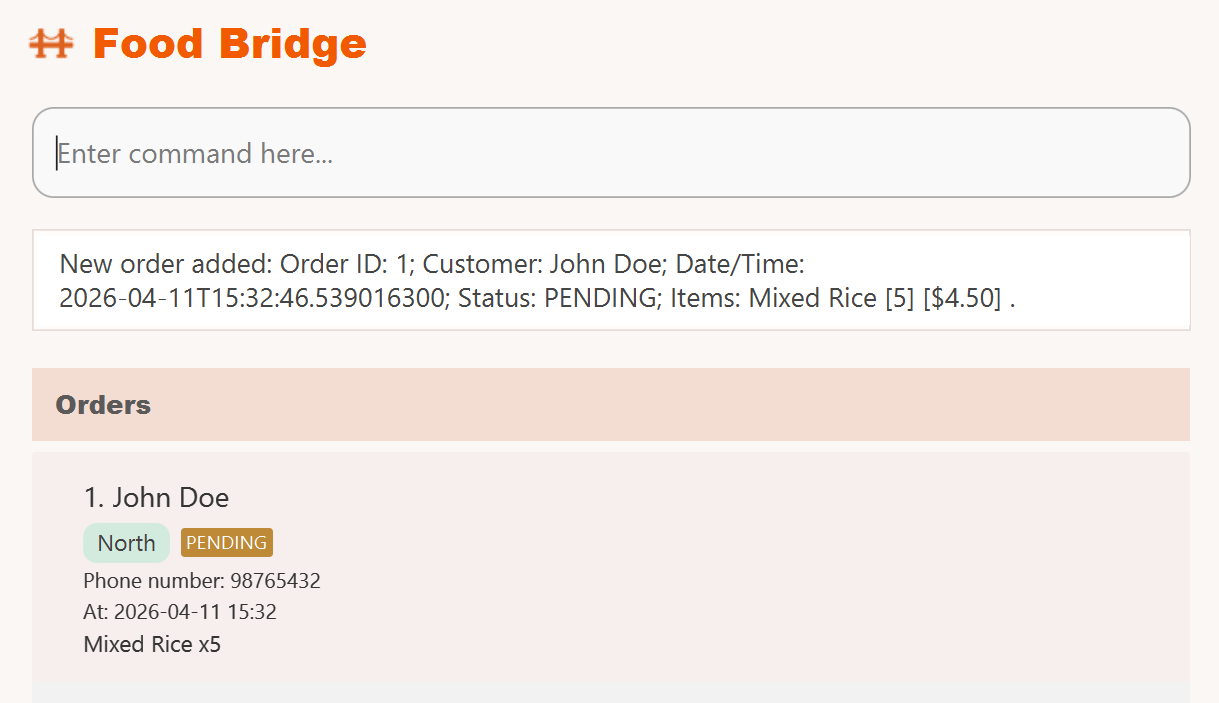 Figure: The new order appears in the order list after executing the command
 addorder c/1 o/2 5.
Refer to common parameters and required formats.
Deleting an order: deleteorder
You can delete an order from the order list.
Format: deleteorder ORDER_INDEX
- Deletes the order at
ORDER_INDEX.- The index refers to the index number shown in the displayed order list.
Examples:
-
deleteorder 3deletes the 3rd order in the order list.
Refer to common parameters and required formats.
Listing all orders: listorder
You can view a list of all orders in the order list.
Format: listorder
Viewing current orders: listcurrorder
You can view a list of all incomplete (active) orders.
Format: listcurrorder
Viewing past orders: listpastorder
You can view a list of all completed orders.
Format: listpastorder
Finding orders by phone number or region: findorder
You can find orders by either customer phone number or customer region.
Format: findorder [p/PHONE_NUMBER] [r/REGION]
- Exactly one filter must be provided (either
p/PHONE_NUMBERorr/REGION). - The phone filter matches orders whose phone number exactly equals
PHONE_NUMBER. - The region filter matches orders whose customer’s region exactly equals
REGION. -
findorderworks for both active and inactive orders. - You can use
listorderto show all orders again after filtering.
Tip:
If findorder p/... returns no results, run listorder first to confirm that orders exist for that phone number.
Tip:
Use short region codes only (N, NE, W, E, C).
Warning:
Do not combine r/ and p/ in the same findorder command.
Examples:
-
findorder p/98765432displays all orders (active and inactive) made by the customer with phone number98765432. -
findorder r/Ndisplays all orders (active and inactive) made by customers in regionN.
Refer to common parameters and required formats.
Deleting orders of a specific person: deleteorderbyphone
You can delete orders matching a specific customer phone number.
Format: deleteorderbyphone PHONE_NUMBER
- Deletes all orders whose customer’s phone number exactly matches
PHONE_NUMBER.
Examples:
-
deleteorderbyphone 98765432deletes all orders made by the customer with phone number98765432.
Refer to common parameters and required formats.
Editing an order: editorder
You can edit an existing order in the order list.
Format: editorder ORDER_INDEX o/MENU_ITEM QUANTITY [o/MENU_ITEM QUANTITY]…
- Edits the order at the specified
ORDER_INDEX.- The index refers to the index number shown in the displayed order list.
- You can repeat the
o/prefix to modify multiple menu items. - For each specified menu item:
- If it does not exist in the order, it will be added.
- If it already exists, its quantity will be updated.
- If the specified quantity is
0, the item will be removed from the order.
- You cannot edit already completed orders.
Examples:
-
editorder 1 o/1 1 o/2 4edits the 1st order in the list to include 1 unit of menu item 1 and 4 units of menu item 2. -
editorder 2 o/3 0edits the 2nd order to remove menu item 3 from the order.
Refer to common parameters and required formats.
Mark an order as completed: complete
You can mark an existing order as completed.
Format: complete ORDER_INDEX
- Marks the order at the specified
ORDER_INDEXas completed.- The index refers to the index number shown in the displayed order list.
Examples:
-
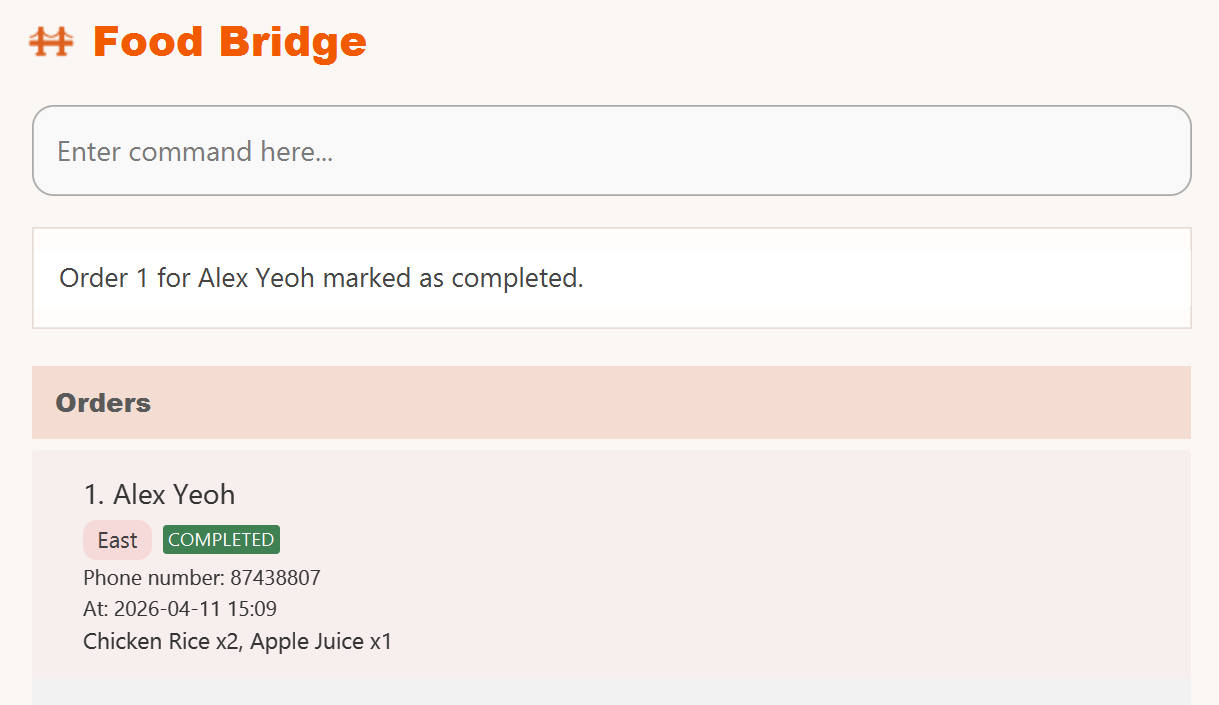
complete 1marks the 1st order in the list as completed.
Completing all orders in a region: completeregion
You can mark all orders from one region as completed.
Format: completeregion r/REGION
- Marks all orders made by customers in the specified
REGIONas completed. - This will not affect orders that are already completed.
- After the command runs, the displayed order list is automatically filtered to show only the orders that were just marked as completed for that region.
- To return to the full order list view (including other regions), run
listorder.
Examples:
-
completeregion r/Emarks all orders made by customers who live in the East region as completed.
Refer to common parameters and required formats.
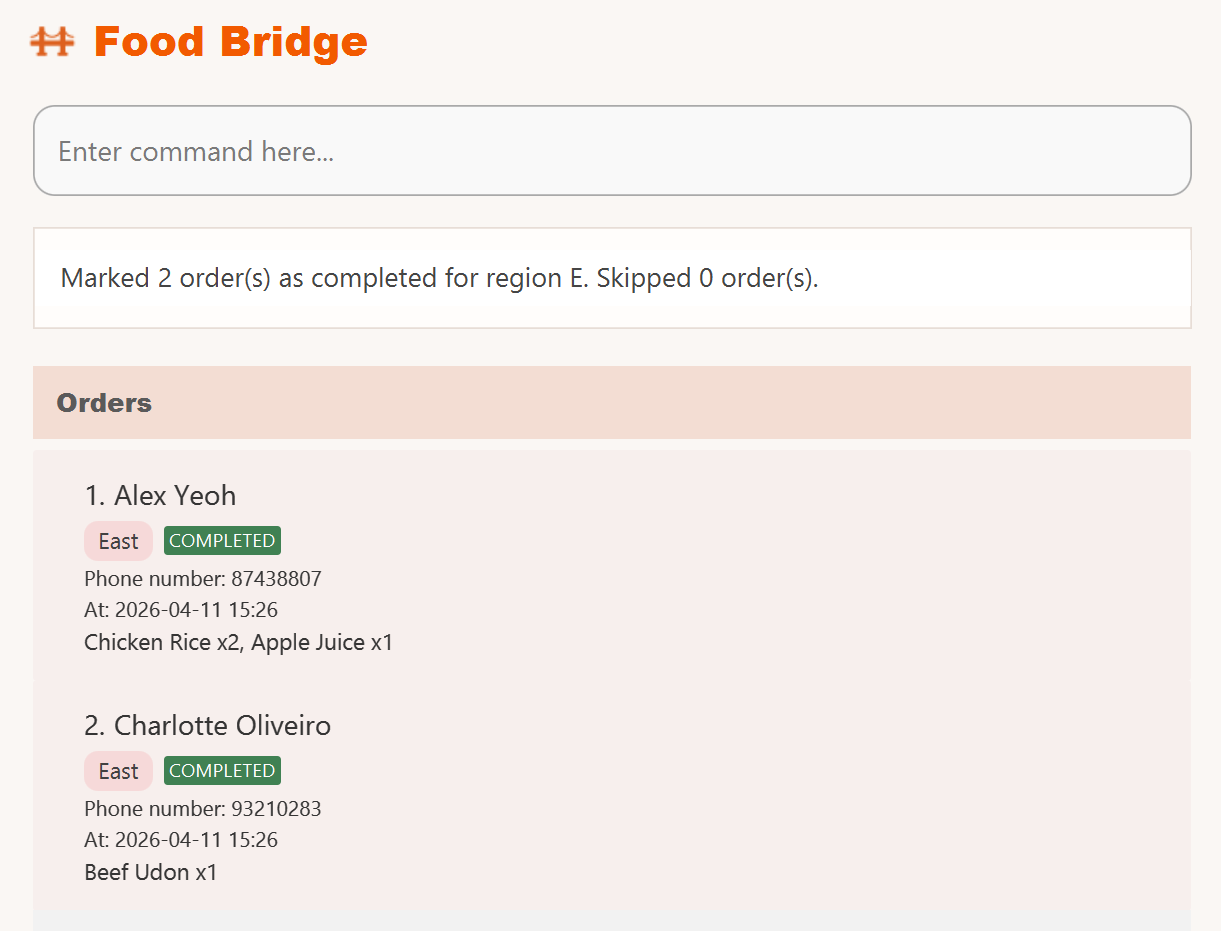 Figure: Completing all orders for customers in the specified region marks the matching orders as completed in the order list.
Refer to common parameters and required formats.
Figure: Completing all orders for customers in the specified region marks the matching orders as completed in the order list.
Refer to common parameters and required formats.
Clear Order List: clearorder
You can clear all orders from the order list.
Format: clearorder
Warning:
clearorder removes all currently stored orders in one step.
Tip:
If this was accidental, run undo immediately to restore them.
General Commands
Viewing help: help
You can view a summary of commands.
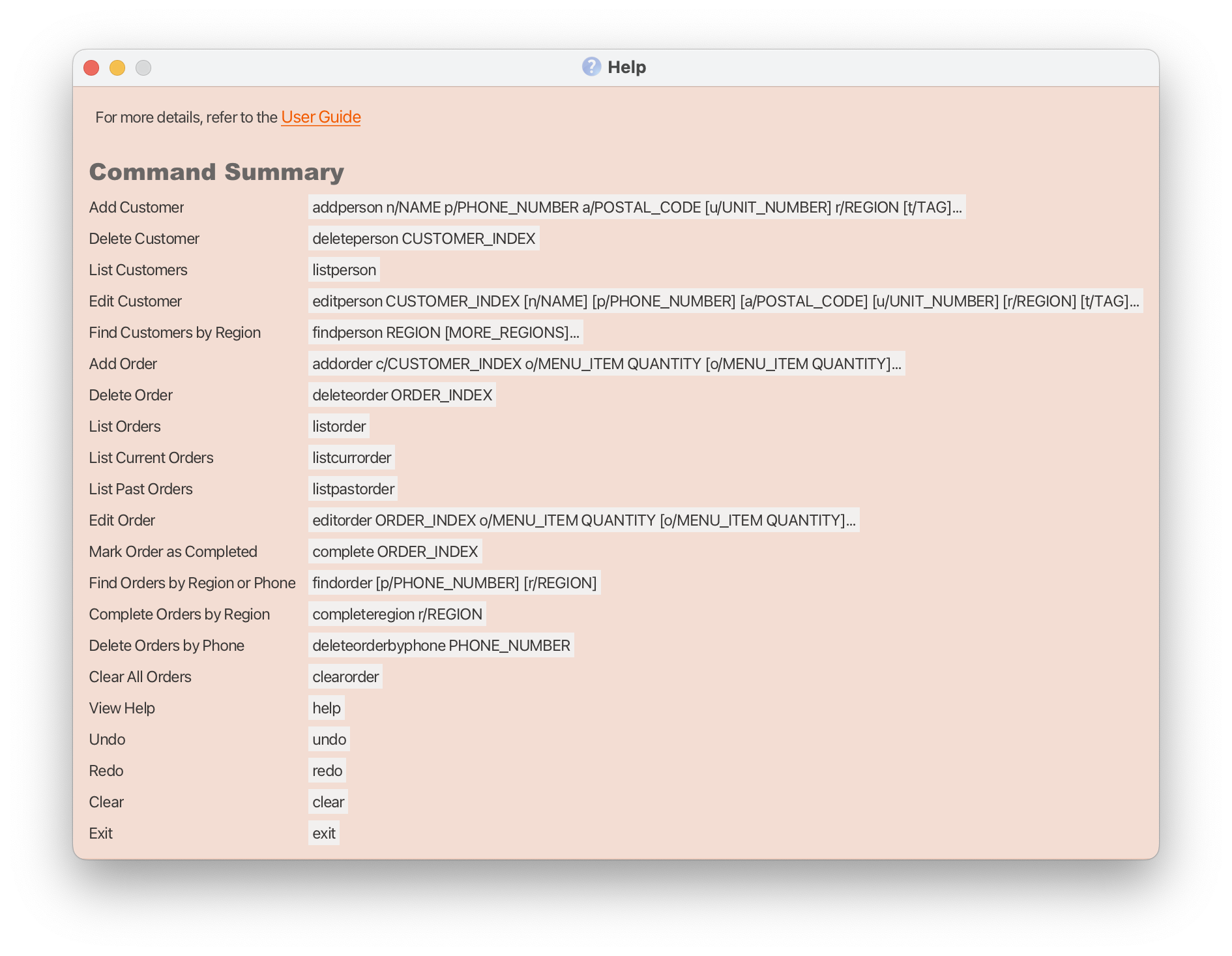
- You can also view the help window by pressing F1, or clicking the “Help” button in the menu bar.
Format: help
Undoing the last change: undo
You can undo the most recent change to the contact or order lists.
Format: undo
- Only commands that modify data can be undone.
- You can perform
undomultiple times until there is no more history to undo.
Examples:
-
deleteperson 2followed byundorestores the deleted person.
Redoing the last undone change: redo
You can redo the most recently undone change.
Format: redo
- You can only use
redoafterundois used.- If there are no undone changes,
redowill fail.
- If there are no undone changes,
- You can perform
redomultiple times until the latest state is reached. - The redo history is cleared when new changes are made.
Examples:
-
deleteperson 2followed byundothenredodeletes the 2nd person again.
Clearing all entries: clear
You can clear all entries from the contact list and order list.
Format: clear
Warning:
clear wipes both customers and orders from the app view.
Tip:
If run by mistake, use undo right away before making other changes.
Exiting the program: exit
You can close the application.
Format: exit
Data Storage
Saving customer and order data
Food Bridge data is saved automatically after any command that modifies data. There is no need to save manually.
(Advanced) Updating the customer and order data file
Food Bridge data is stored as a JSON file [JAR file location]/data/addressbook.json. Advanced users may update the data directly by editing this file.
Caution:
If your changes are invalid, Food Bridge will discard all data and start with an empty data file on the next run. Hence, it is recommended to back up the file before editing it.Furthermore, certain edits may cause Food Bridge to behave in unexpected ways (e.g. if a value is outside the acceptable range). Therefore, edit the data file only if you are confident that you can update it correctly.
FAQ
Q: How do I transfer my data to another computer?
A: Install the app in the other computer. Then, run the app. Overwrite the empty data file it creates with the file that contains the data of your previous Food Bridge home folder. Your data should load once you relaunch your app.
Q: Can I add multiple products in one order?
A: Yes. Use the addorder command and add as many menu items as you want with the o/ prefix.
Q: Can I use both p/ and r/ in one findorder command?
A: No. findorder accepts only one filter at a time, either p/PHONE_NUMBER or r/REGION.
Q: Why does deleteorderbyphone not use p/ like findorder?
A: deleteorderbyphone takes a plain PHONE_NUMBER argument without a prefix. Example: deleteorderbyphone 98765432.
Q: What happens if I delete a customer with existing orders?
A: Deleting a customer automatically deletes their corresponding orders.
Known issues
-
Using multiple screens: if you move the app to a second screen, and later switch back to using only one screen, the app might open somewhere you can’t see it. To fix this, delete the
preferences.jsonfile before opening the app again. -
Help Window remains hidden: if you minimize the Help Window then try to open it again (whether by using the
helpcommand, theHelpmenu, or the keyboard shortcutF1), nothing will seem to happen. Instead, simply restore the minimized Help Window manually. -
App does not open when double-clicking the
.jarfile: double-clicking the.jarfile may not work on some systems. Instead, open a terminal and launch the app using the commandjava -jar food-bridge-[version].jar. - App can’t save data: if the app is in a folder where it isn’t allowed to make changes, the data won’t be saved properly. You’ll need to move it to a different folder where it has permission.
Command summary
| Action | Format, Examples |
|---|---|
| Add Customer |
addperson n/NAME p/PHONE_NUMBER a/POSTAL_CODE [u/UNIT_NUMBER] r/REGION [t/TAG]… e.g. addperson n/John Doe p/98765432 a/111111 u/#01-01 r/N t/member
|
| Delete Customer |
deleteperson CUSTOMER_INDEX (deletes the customer and all associated orders) e.g. deleteperson 2
|
| List Customers | listperson |
| Edit Customer |
editperson CUSTOMER_INDEX [n/NAME] [p/PHONE_NUMBER] [a/POSTAL_CODE] [u/UNIT_NUMBER] [r/REGION] [t/TAG]… e.g. editperson 1 p/91234567 r/E
|
| Find Customers by Region |
findperson REGION [MORE_REGIONS]… e.g. findperson N
|
| Add Order |
addorder c/CUSTOMER_INDEX o/MENU_ITEM QUANTITY [o/MENU_ITEM QUANTITY]… e.g. addorder c/1 o/2 5
|
| Delete Order |
deleteorder ORDER_INDEX e.g. deleteorder 3
|
| List Orders | listorder |
| List Current Orders | listcurrorder |
| List Past Orders | listpastorder |
| Edit Order |
editorder ORDER_INDEX o/MENU_ITEM QUANTITY [o/MENU_ITEM QUANTITY]… e.g. editorder 1 o/1 1 o/2 4
|
| Mark Order as Completed |
complete ORDER_INDEX e.g. complete 1
|
| Find Orders by Region or Phone |
findorder [p/PHONE_NUMBER] [r/REGION] (exactly one field must be provided; works for active and inactive orders) e.g. findorder r/N, findorder p/98765432
|
| Complete Orders by Region |
completeregion r/REGION (after execution, the displayed list is filtered to just-completed matching orders; run listorder to show all orders again) e.g. completeregion r/NE
|
| Delete Orders by Phone |
deleteorderbyphone PHONE_NUMBER e.g. deleteorderbyphone 98765432
|
| Clear All Orders | clearorder |
| View Help | help |
| Undo | undo |
| Redo | redo |
| Clear | clear |
| Exit | exit |